Introduction
In the first part of this article, we covered how to assemble the hardware of our Kubernetes cluster using a Turing Pi 2 board with 4 Raspberry Pi Compute Module 4 units. We installed DietPi as the operating system on each node and connected an SSD to node 3 via the SATA port.
If you’ve followed all the steps from Part 1, you should now have:
- The BMC active and configured
- All 4 nodes accessible via SSH
- A physical cluster ready to host the software infrastructure
In this second part, we will focus on configuring the Kubernetes cluster, starting with the installation of K3s and integrating essential tools for management, monitoring, and application deployment.
Objectives
In this second part, we’ll focus on configuring the software environment of our cluster. The goal is to create a complete, functional Kubernetes cluster ready to manage applications in a modern and modular way.
Specifically, we will:
- Install K3s to set up a lightweight and efficient Kubernetes cluster
- Install and configure Helm, the package manager for Kubernetes
- Set up MetalLB as a load balancer to assign public IPs in the cluster
- Install ArgoCD to manage GitOps-based application deployment
- Integrate Prometheus for cluster monitoring
- Add Grafana to visualize metrics through dashboards
At the end of this guide, your cluster will be ready to manage production-grade applications (or nearly 😄), and you’ll be able to start experimenting with the Kubernetes ecosystem.
Prerequisites
Before installing the Kubernetes cluster, we need to complete some system configurations on each node.
Enable cgroups
To allow Kubernetes (and thus K3s) to function correctly, you need to enable cgroups in the kernel.
SSH into each node.
Edit the file
/boot/cmdline.txtby adding the following to the end of the line (everything must stay on one line):cgroup_enable=cpuset cgroup_enable=memory cgroup_memory=1Reboot each node to apply the change. If you’re using BMC with the
tpitool, you can do:tpi power off -n 1tpi power on -n 1Repeat for each node (
-n 2,-n 3, etc.).
Set Hostnames
Assign a unique hostname to each node. I chose the following names:
- cube01
- cube02
- cube03
- cube04
You can change them via:
dietpi-config > Security Options > HostnameUpdate the Operating System
On each node, run:
apt updateapt upgradeConfigure /etc/hosts
Update the /etc/hosts file on each node with the static IPs and assigned hostnames. This allows you to use hostnames instead of IP addresses.
Example:
192.168.1.178 cube01192.168.1.180 cube02192.168.1.177 cube03192.168.1.187 cube04Install a Basic Firewall
Install a basic firewall (iptables) on each node:
apt -y install iptablesInstalling Kubernetes with K3s
To install Kubernetes, we’ll use K3s, a lightweight distribution designed for resource-constrained environments like Raspberry Pi, but without sacrificing core Kubernetes functionality.
Control Plane Installation
On node cube01 (or the one you’ve chosen as master), run:
curl -sfL https://get.k3s.io | sh -s - \ --write-kubeconfig-mode 644 \ --disable servicelb \ --token myrandompassword \ --node-ip 192.168.1.178 \ --disable-cloud-controller \ --disable local-storageNote: Replace myrandompassword with a secure token and save it: you’ll need it to join other nodes.
Explanation of options:
--write-kubeconfig-mode 644: makes the kubeconfig file readable by other users (e.g., Rancher)--disable servicelb: disables the built-in service load balancer as we’ll use MetalLB--token: custom token to allow other nodes to join the cluster--node-ip: local IP of the node (adjust to your setup)--disable-cloud-controller: disables the cloud controller, not needed in bare-metal setups--disable local-storage: disables K3s local storage, since we’ll use NFS instead
Verify
After installation, verify the master node status with:
kubectl get nodesExpected output:
NAME STATUS ROLES AGE VERSIONcube01 Ready control-plane,master 6m22s v1.25.6+k3s1Worker Node Installation
To join the other nodes (e.g., cube02, cube03, cube04) to the control plane, run this on each node:
curl -sfL https://get.k3s.io | K3S_URL=https://192.168.1.178:6443 K3S_TOKEN=myrandompassword sh -Replace:
192.168.1.178with the IP of the master nodemyrandompasswordwith the token used earlier
After a few seconds, you should see the nodes join the cluster. Verify from the master node:
kubectl get nodesExample output:
NAME STATUS ROLES AGE VERSIONcube01 Ready control-plane,master 10m v1.25.6+k3s1cube02 Ready <none> 2m v1.25.6+k3s1cube03 Ready <none> 2m v1.25.6+k3s1cube04 Ready <none> 1m v1.25.6+k3s1Label the Nodes
Optional but recommended: labeling nodes allows Kubernetes to assign custom roles, enabling better workload distribution.
kubectl label nodes cube01 kubernetes.io/role=workerkubectl label nodes cube02 kubernetes.io/role=workerkubectl label nodes cube03 kubernetes.io/role=workerkubectl label nodes cube04 kubernetes.io/role=workerTo verify:
kubectl get nodes --show-labelsInstalling Helm
Helm is the go-to package manager for Kubernetes. It allows you to install, update, and manage complex applications through simple commands and configuration files called charts.
Manual Installation on cube01 (master)
Install Git (required for some Helm charts):
apt -y install gitConfigure the kubeconfig file:
export KUBECONFIG=~/.kube/config mkdir -p ~/.kube sudo k3s kubectl config view --raw > "$KUBECONFIG" chmod 600 "$KUBECONFIG" echo "KUBECONFIG=$KUBECONFIG" >> /etc/environmentDownload and install Helm:
cd ~mkdir helmcd helmcurl -fsSL -o get_helm.sh https://raw.githubusercontent.com/helm/helm/main/scripts/get-helm-3chmod 700 get_helm.sh./get_helm.shVerify the installation:
helm version
Networking with MetalLB
MetalLB is a load balancer for bare-metal environments, allowing you to expose Kubernetes services using assignable IP addresses in your local network. It’s essential if you want to access your services externally without a cloud provider.
Installing MetalLB
On the master node (cube01):
Add the MetalLB Helm repository:
helm repo add metallb https://metallb.github.io/metallbhelm repo updateConfirm the chart is available:
helm search repo metallbInstall MetalLB:
helm upgrade --install metallb metallb/metallb --create-namespace \ --namespace metallb-system --wait
Configure the IP Address Pool
Assign an IP range for MetalLB to use. Adjust based on your network setup and make sure these IPs are not used by other devices.
cat << 'EOF' | kubectl apply -f -apiVersion: metallb.io/v1beta1kind: IPAddressPoolmetadata: name: default-pool namespace: metallb-systemspec: addresses: - 192.168.1.240-192.168.1.250---apiVersion: metallb.io/v1beta1kind: L2Advertisementmetadata: name: default namespace: metallb-systemspec: ipAddressPools: - default-poolEOFVerify
You should see:
ipaddresspool.metallb.io/default-pool createdl2advertisement.metallb.io/default createdStorage Configuration with NFS
To handle persistent storage in the cluster, this setup uses an NFS server based on an SSD connected to the SATA port on node 3 (cube03). This allows you to centralize shared volumes for use in Kubernetes pods.
Identify the Disk
SSH into cube03 and run:
fdisk -lExample output:
Disk /dev/sda: 931.51 GiB, 1000204886016 bytes, 1953525168 sectorsDisk model: CT1000BX500SSD1Format and Mount the Disk
Format the disk as ext4:
mkfs.ext4 /dev/sdaCreate a mount point and configure automatic mounting:
mkdir /dataecho "/dev/sda /data ext4 defaults 0 0" | tee -a /etc/fstabmount -aVerify the mount:
df -h /dataInstall and Configure the NFS Server
Install the NFS server package:
apt install -y nfs-serverExport the /data directory:
echo "/data *(rw,no_subtree_check,no_root_squash)" | tee -a /etc/exportsEnable and start the NFS service:
systemctl enable --now nfs-serverReload and re-export:
exportfs -arVerify:
showmount -e localhostInstall the NFS Client on Other Nodes
On nodes cube01, cube02, and cube04:
apt install -y nfs-commonYour cluster can now use /data as shared storage via NFS.
Installing the NFS StorageClass
In Kubernetes, a StorageClass defines the type of storage that can be dynamically provisioned for pods. It is an abstraction layer that allows the creation of Persistent Volumes (PV) automatically when an application requests a Persistent Volume Claim (PVC).
Key Concepts
- Persistent Volume (PV): a portion of storage in the cluster, either statically or dynamically provisioned.
- Persistent Volume Claim (PVC): a request by an application for a specific type and amount of storage.
- StorageClass: defines how a PV should be created based on a PVC request.
Relationship:
PVC ➜ requests storage ➜ StorageClass ➜ defines how it's created ➜ PV ➜ is assignedThe Provisioner: nfs-subdir-external-provisioner
To use NFS in our cluster, we’ll install the nfs-subdir-external-provisioner, a controller that automatically manages subfolders in an NFS export for each PVC request.
Install via Helm
Run on the master node (cube01):
helm repo add nfs-subdir-external-provisioner https://kubernetes-sigs.github.io/nfs-subdir-external-provisioner/helm repo updatehelm install nfs-subdir-external-provisioner nfs-subdir-external-provisioner/nfs-subdir-external-provisioner \ --set nfs.server=192.168.1.177 \ --set nfs.path=/data \ --create-namespace \ --namespace nfs-systemVerify the StorageClass
After installation, verify:
kubectl get storageclassExample output:
NAME PROVISIONER RECLAIMPOLICY VOLUMEBINDINGMODE ALLOWVOLUMEEXPANSION AGEnfs-client cluster.local/nfs-subdir-external-provisioner Delete Immediate true 10mInstalling ArgoCD
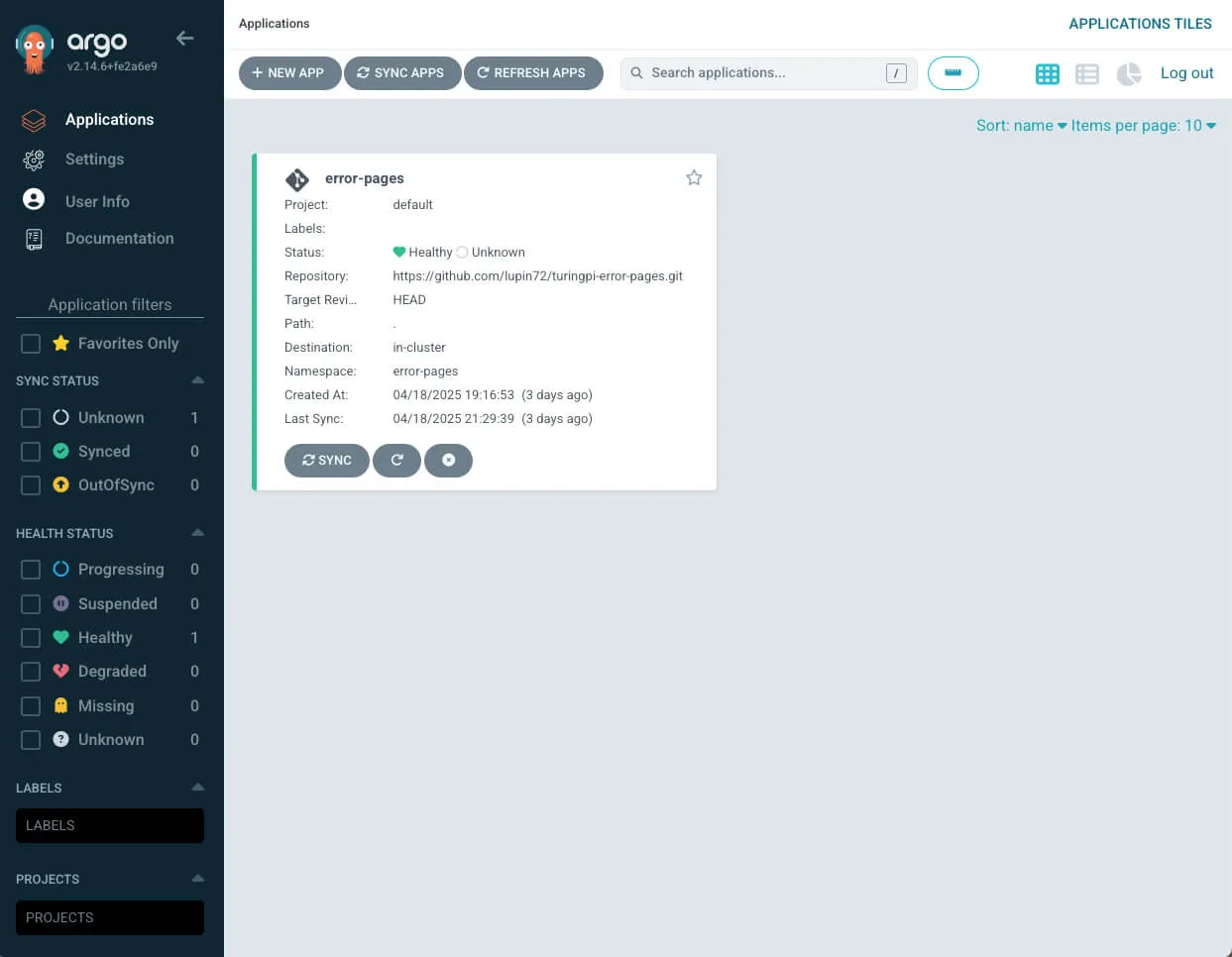
ArgoCD is a DevOps tool for Kubernetes that enables the GitOps model: applications are defined as code in a Git repository and ArgoCD automatically syncs and deploys them in the cluster.
Installation
Run on the master node (cube01):
kubectl create namespace argocdkubectl apply -n argocd -f https://raw.githubusercontent.com/argoproj/argo-cd/stable/manifests/install.yamlWait until all pods are in Running state:
kubectl get pods -n argocdExpected output:
NAME READY STATUS RESTARTS AGEargocd-application-controller-0 1/1 Running 0 3dargocd-applicationset-controller-xxx 1/1 Running 0 3dargocd-dex-server-xxx 1/1 Running 0 3dargocd-notifications-controller-xxx 1/1 Running 0 3dargocd-redis-xxx 1/1 Running 0 3dargocd-repo-server-xxx 1/1 Running 0 3dargocd-server-xxx 1/1 Running 0 3dRetrieve the Login Password
kubectl -n argocd get secret argocd-initial-admin-secret -o jsonpath="{.data.password}" | base64 -d; echoAccessing the UI via MetalLB
Expose ArgoCD’s web interface using a LoadBalancer:
kubectl patch service argocd-server -n argocd --patch '{ "spec": { "type": "LoadBalancer", "loadBalancerIP": "192.168.1.242" } }'Check:
kubectl get svc -n argocdInstalling Prometheus and Grafana
Prometheus is a monitoring and alerting system developed by SoundCloud and now part of the CNCF. It is designed to collect metrics from cloud-native environments like Kubernetes.
Grafana, integrated into this stack, enables visualization of metrics via interactive, customizable dashboards.
Installation
On the master node (cube01), run:
helm repo add prometheus-community https://prometheus-community.github.io/helm-chartshelm repo updatehelm install prometheus prometheus-community/kube-prometheus-stack \ --namespace monitoring \ --create-namespace \ --set prometheus.prometheusSpec.storageSpec.volumeClaimTemplate.spec.storageClassName=nfs-client \ --set prometheus.prometheusSpec.storageSpec.volumeClaimTemplate.spec.resources.requests.storage=2Gi \ --set grafana.persistence.enabled=true \ --set grafana.persistence.storageClassName=nfs-client \ --set grafana.persistence.size=2GiVerify
kubectl get pods -n monitoringRetrieve Grafana Admin Password
kubectl get secret --namespace monitoring prometheus-grafana -o jsonpath="{.data.admin-password}" | base64 -d; echoAccessing Grafana via MetalLB
Expose Grafana via a LoadBalancer IP:
kubectl patch svc prometheus-grafana -n monitoring \ --patch '{ "spec": { "type": "LoadBalancer", "loadBalancerIP": "192.168.1.243" } }'Check:
kubectl get svc -n monitoringCreating Monitoring Dashboards
- Log in to the Grafana web UI
- Enter the admin credentials and change the password if prompted
Add Prometheus as a Data Source
Go to: Connections → Data sources and add a new source:
- Type: Prometheus
- URL: http://prometheus-kube-prometheus-prometheus.monitoring.svc.cluster.local:9090
Click Save & Test.
Import Preconfigured Dashboards
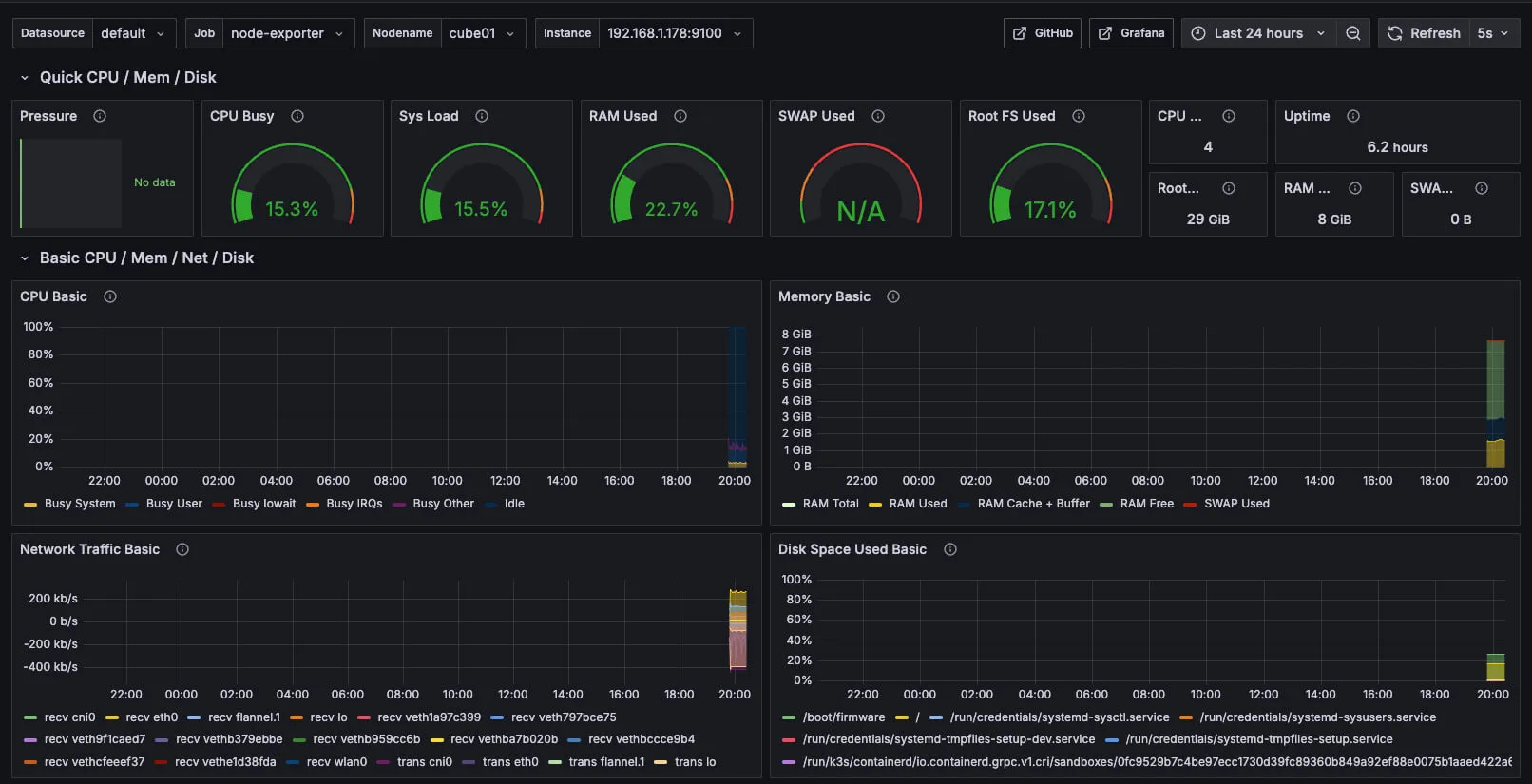
Node Monitoring Dashboard
Go to: Dashboard → New → Import and enter the ID: 1860
K3s Cluster Monitoring Dashboard
Import using ID: 15282
You now have full visibility into CPU, RAM, storage, traffic, and cluster health directly from Grafana.
Conclusion
At this point, your Kubernetes cluster based on Turing Pi 2 and Raspberry Pi CM4 is complete and fully operational, with all essential components for modern application management:
- K3s as a lightweight and reliable Kubernetes distribution
- Helm to simplify installation and management of services
- MetalLB for exposing services in bare-metal environments
- NFS as shared persistent storage
- ArgoCD for GitOps-based application deployment
- Prometheus and Grafana for monitoring and visualizing metrics
This setup provides a solid foundation to experiment with Kubernetes, automate application delivery, monitor system health, and easily scale new features.